Templates
Importing & Community Templates
Start from an existing Word document or copy a community template — faster than building from scratch.
Importing from Word
If you already have a report template in Word, you can import it directly into Scrippio and convert it into an editable template with AI blocks.
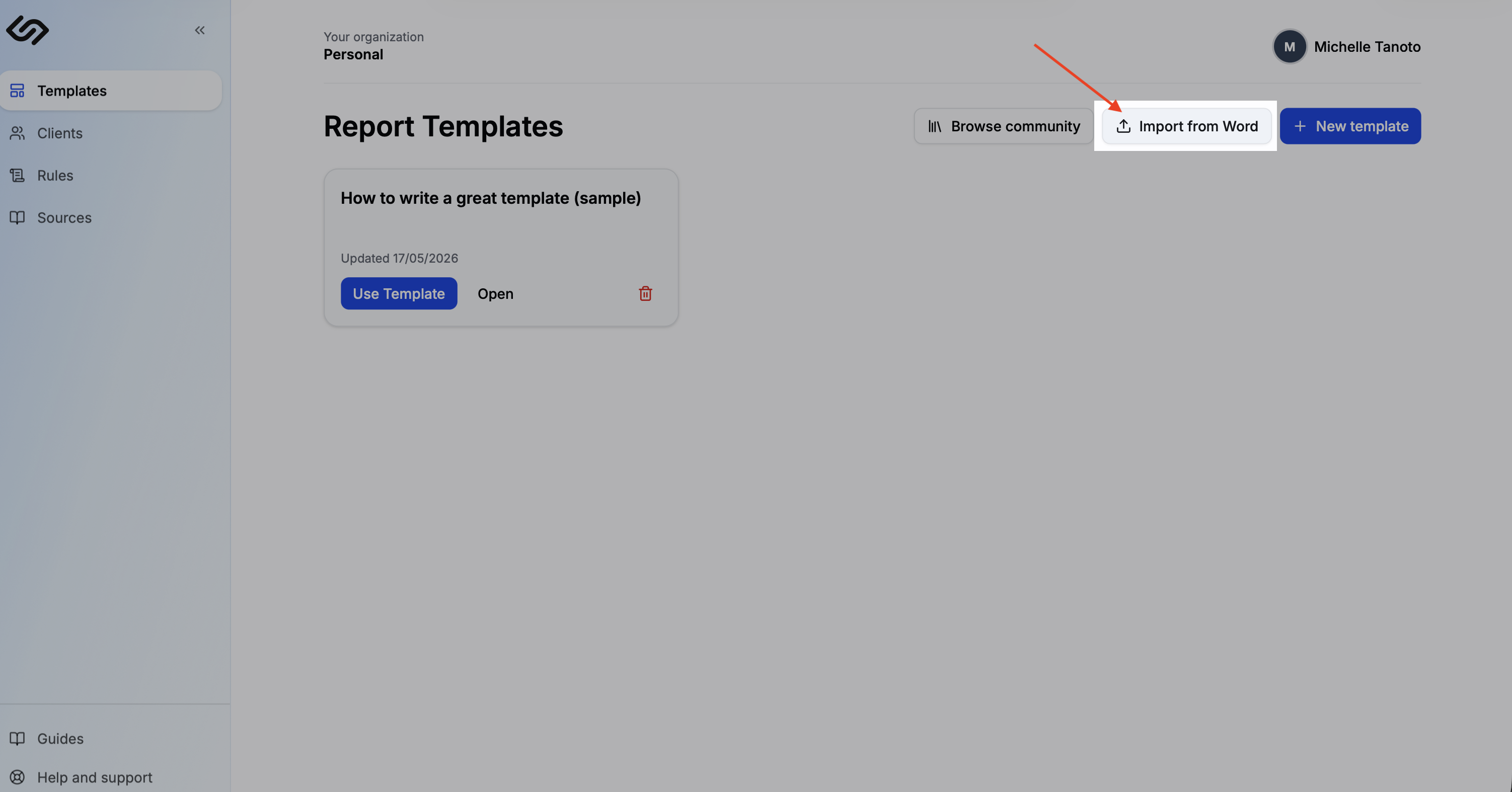
Click Import from Word
Go to Templates and click Import from Word. Select a .docx file from your computer.
Review the imported content
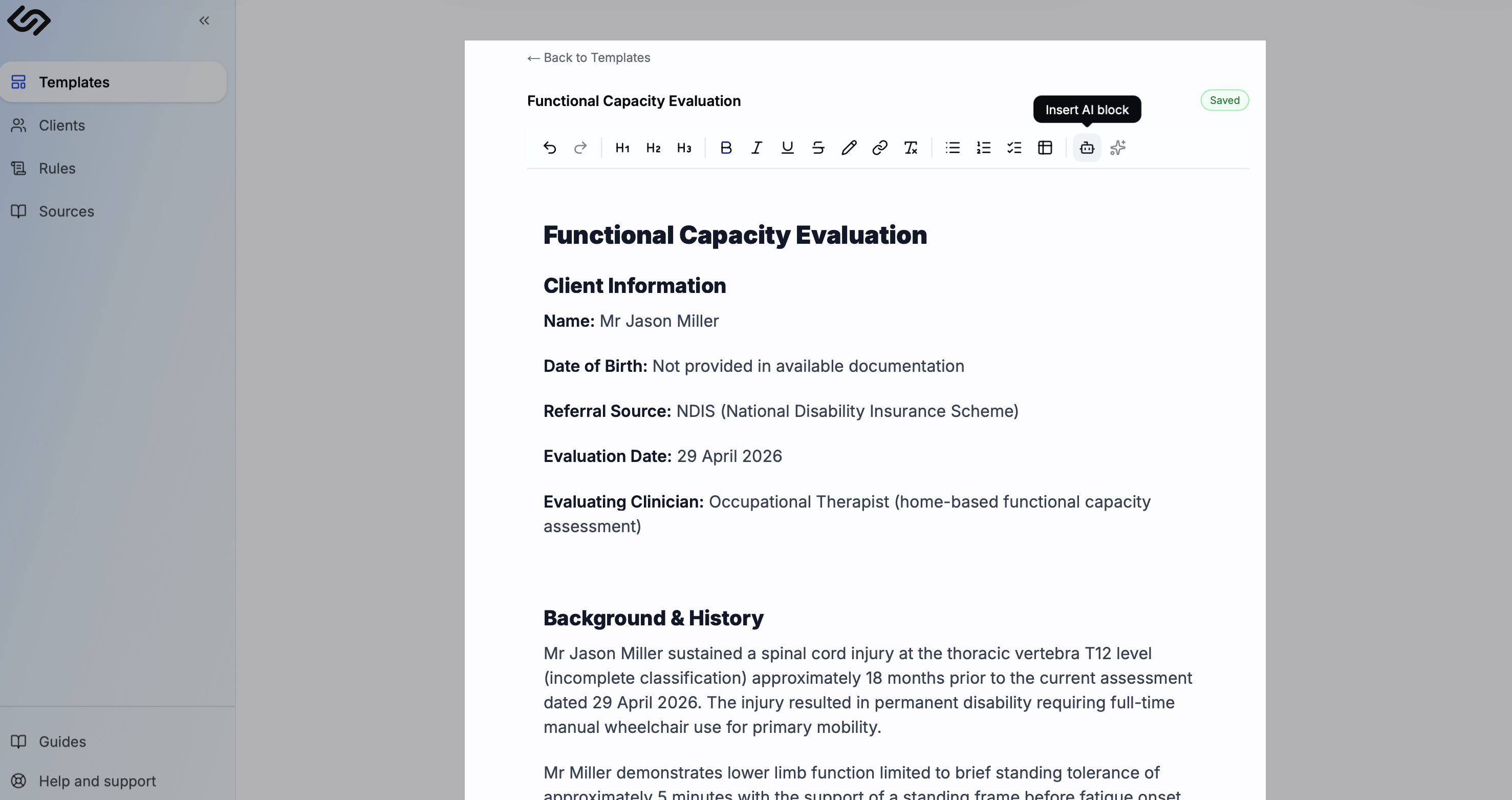
The document content is extracted and loaded into the editor, preserving headings, lists, and tables. Review the imported structure and clean up any formatting you don't need.
Add AI blocks
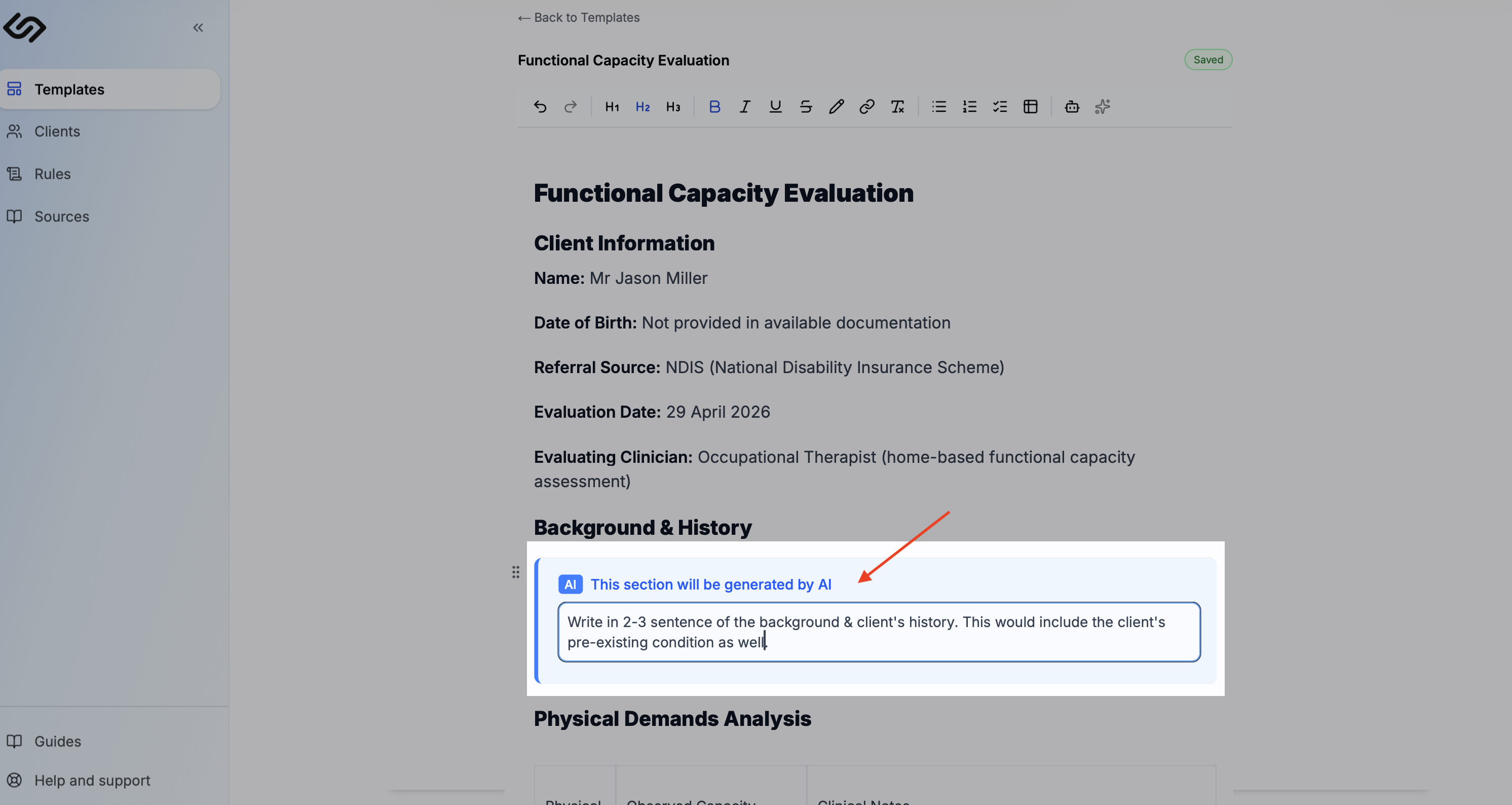
Replace the sections you want generated with AI blocks. Select AI Block, then write a prompt for each section. Leave static sections (letterhead, disclaimers) as plain text.
Community templates
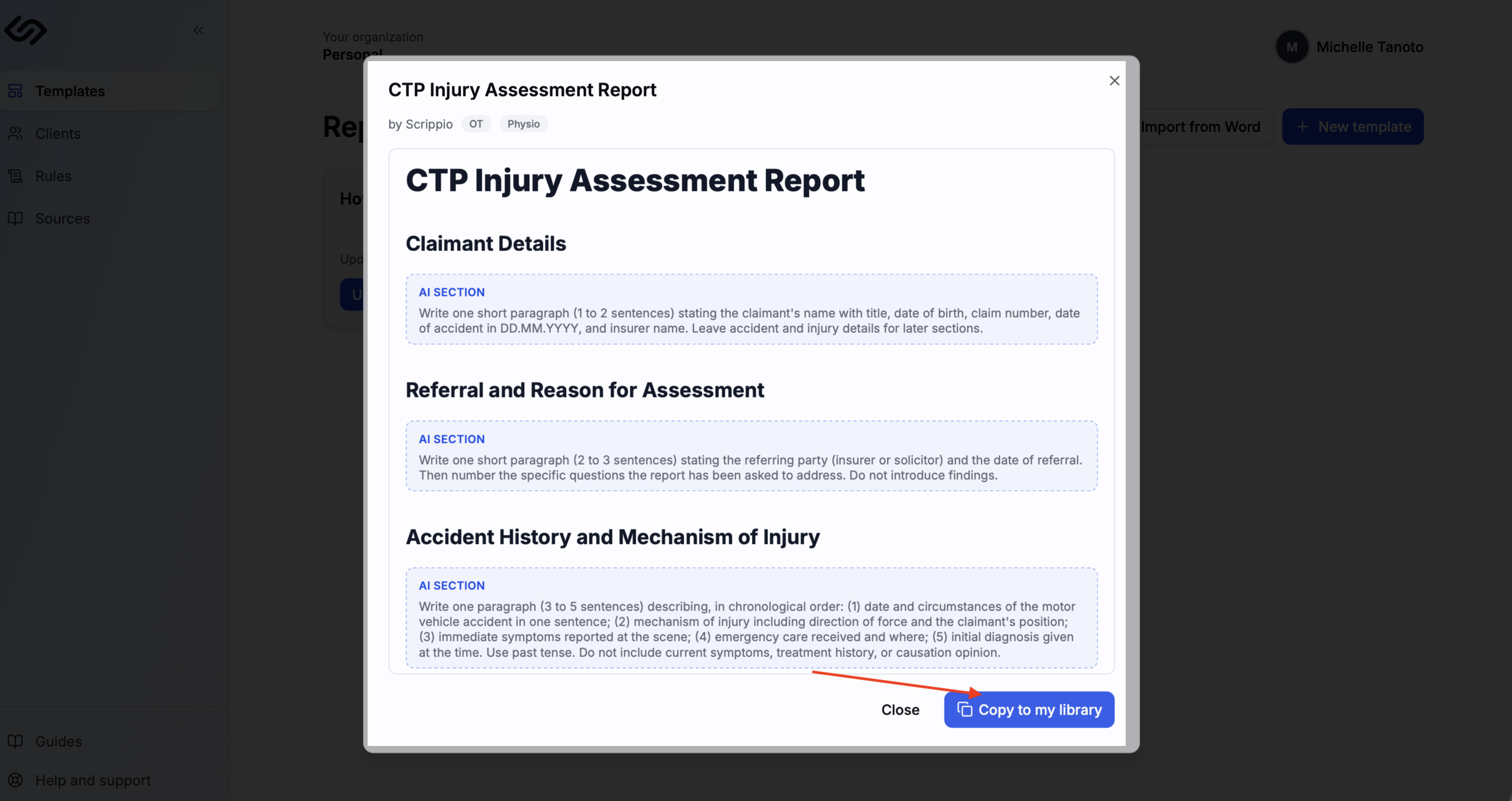
Scrippio ships with community templates for common report types — NDIS progress reports, WorkCover capacity statements, functional capacity evaluations, and more. These are ready to use out of the box and fully customisable once copied to your library.
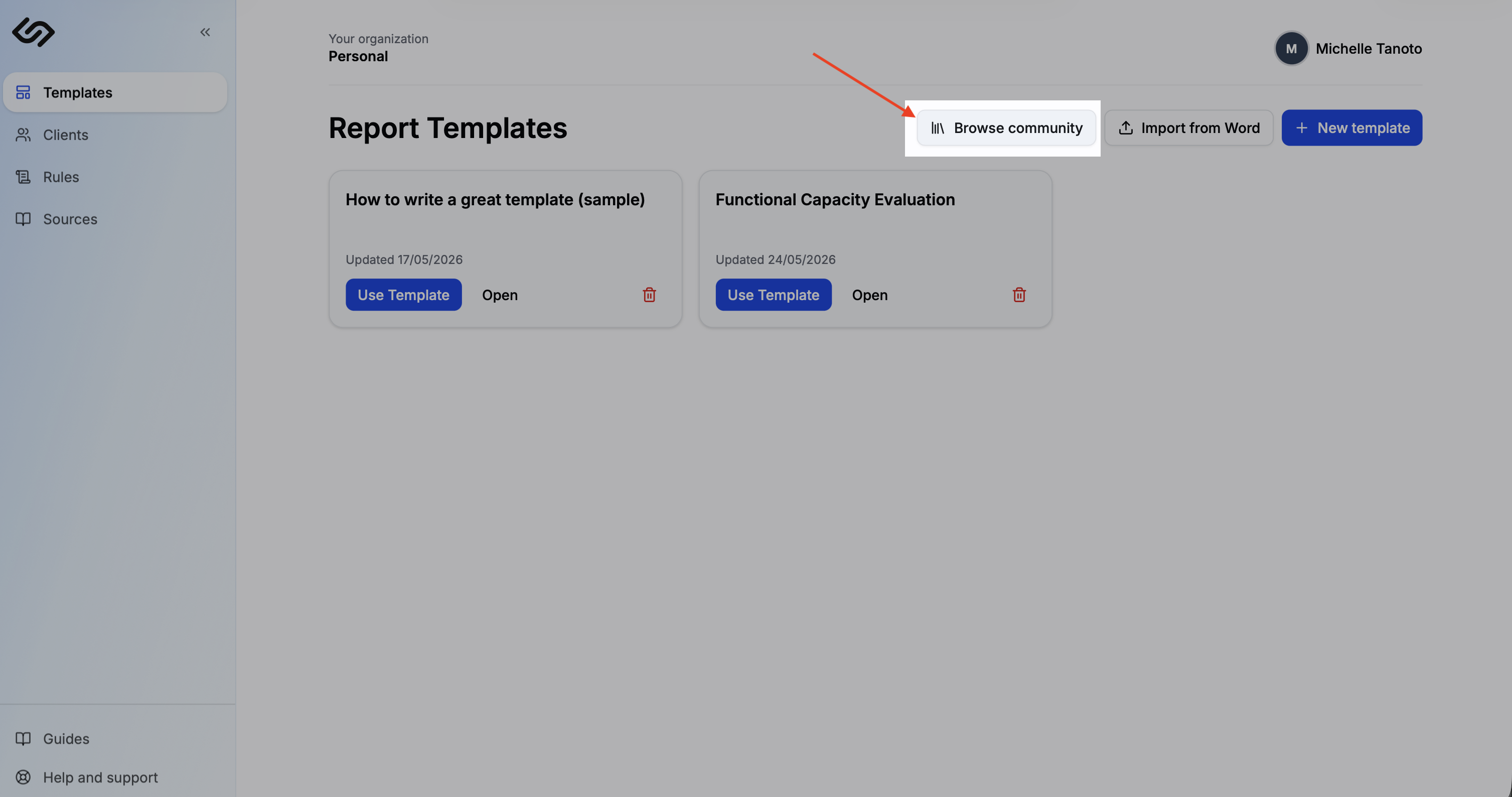
Browse community templates
Go to Templates and click on the Browse Community button. Browse by discipline or scheme to find a template that matches your report type.
Copy to your library
Click Use Template on any template. It's added to your library as your own copy — you can customise it freely without affecting the community version.