Setting You Up for Success
Getting Quality Reports
The AI is only as good as what you give it. These habits consistently produce better drafts — less editing, more time saved.
Output quality comes down to two things: the context you attach and the prompts in your template. Get both right and the AI produces drafts you can approve with minimal editing.
Show the AI how you write
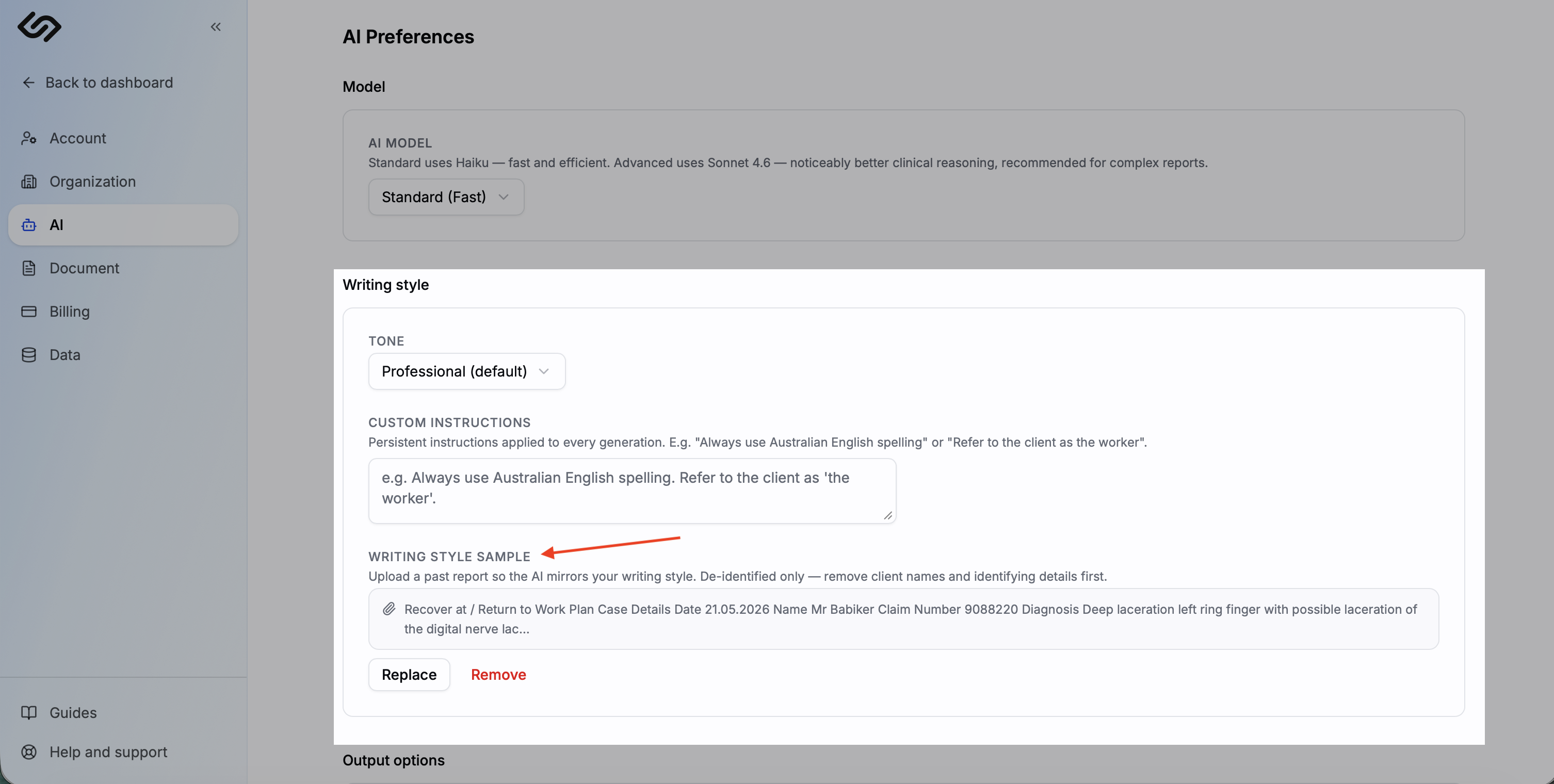
The fastest way to match your writing style is to show the AI an example of your own work. In the generation context panel, find the Style Sample section and upload a past report (.docx or .pdf) — the AI uses it as a style reference for that generation. You can replace or remove it at any time.
Attach the right context
Before generating, the context panel on the left lets you configure what the AI can see. Each item you attach is included in what the AI reads when filling each block.
- Attachments — check the session notes, voice note transcripts, and uploaded documents relevant to this report. Only check what's needed — attaching everything can dilute the AI's focus.
- Sources — reference documents you've uploaded to your account. Useful for NDIS pricing guides, clinical frameworks, or other material you want the AI to draw from consistently.
- Rules — organisation rules always apply. Personal rules are on by default but can be toggled off per report if needed.
Write better session notes
The AI can only write specifically about what you've told it. Vague notes produce vague drafts — no prompt tweak compensates for thin context.
- Write notes immediately after the session while details are fresh — even a quick brain dump is better than nothing.
- Include your clinical reasoning, not just the facts. "Client struggled with bilateral coordination during peg transfer — consistent with prior FCE findings" gives the AI far more to work with than "completed OT assessment".
- Use voice notes if typing is too slow. Record a 2–3 minute debrief after the session and the transcript becomes context the AI can draw from.
Write specific template prompts
Each AI block in your template has a prompt — the instruction the AI follows for that section. Vague prompts get generic output; specific prompts get drafts you can actually use.
- Tell the AI the structure: "Write 2–3 short paragraphs summarising functional capacity, focusing on ADL limitations and goal progress."
- Set the scope: "Do not include recommendations — this section is assessment only."
- Reference the context: "Based on the attached session notes and assessment results..."
Use the AI Helpers after generation
Every generated block has four helper actions available on the right edge:
- Regenerate — re-runs the AI for that block. Use this when the output missed the mark entirely. You can edit the prompt before regenerating to steer it differently.
- Improve Writing — rewrites the content for clarity and flow without changing the clinical meaning. Use when the content is accurate but reads awkwardly.
- Refine — give the AI a specific instruction to adjust the current output without regenerating from scratch. E.g. "shorten to two sentences" or "focus more on goal progress".
- Why — explains which parts of your notes, documents, or prompts influenced the output. Useful when a section came out unexpectedly.
Fix recurring issues in the template, not the output
If you find yourself making the same edit after every generation — a section that's always too long, a tone that's consistently off — update the AI block prompt in the template instead. Fix it once and every future report benefits automatically.