Get started
Quickstart
Go from zero to a generated report in under 5 minutes.
This guide walks you through creating a template, adding a client, and generating your first report. By the end you'll have a structured draft ready to review and export.
Before you begin
You'll need an active Scrippio account. If you don't have one, feel free to sign up. No other setup required.
Generate your first report
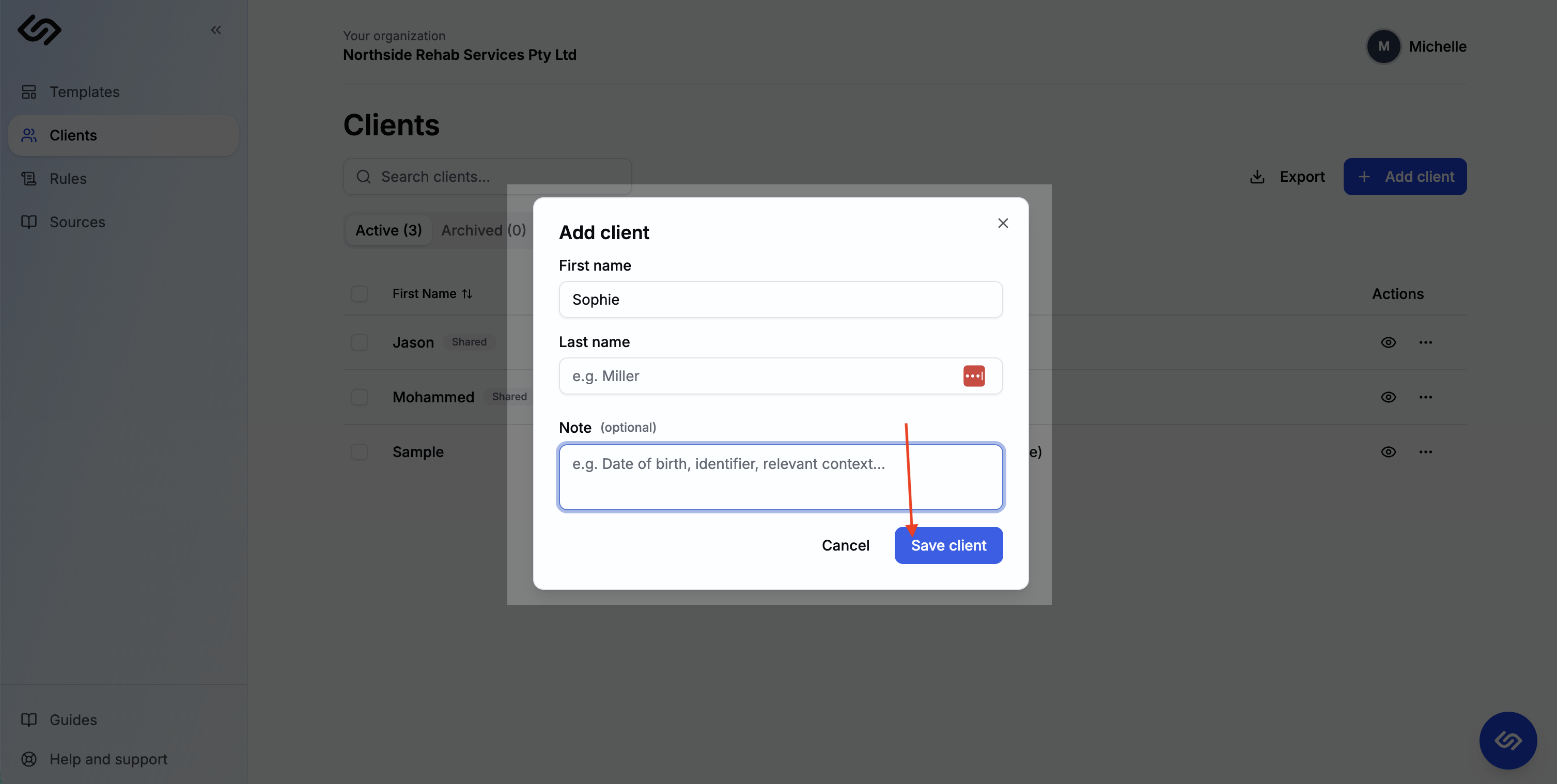
Add a client
Go to Clients and click New client. Enter the client's name and any relevant background details. You can add documents and notes that are relevant to the client.
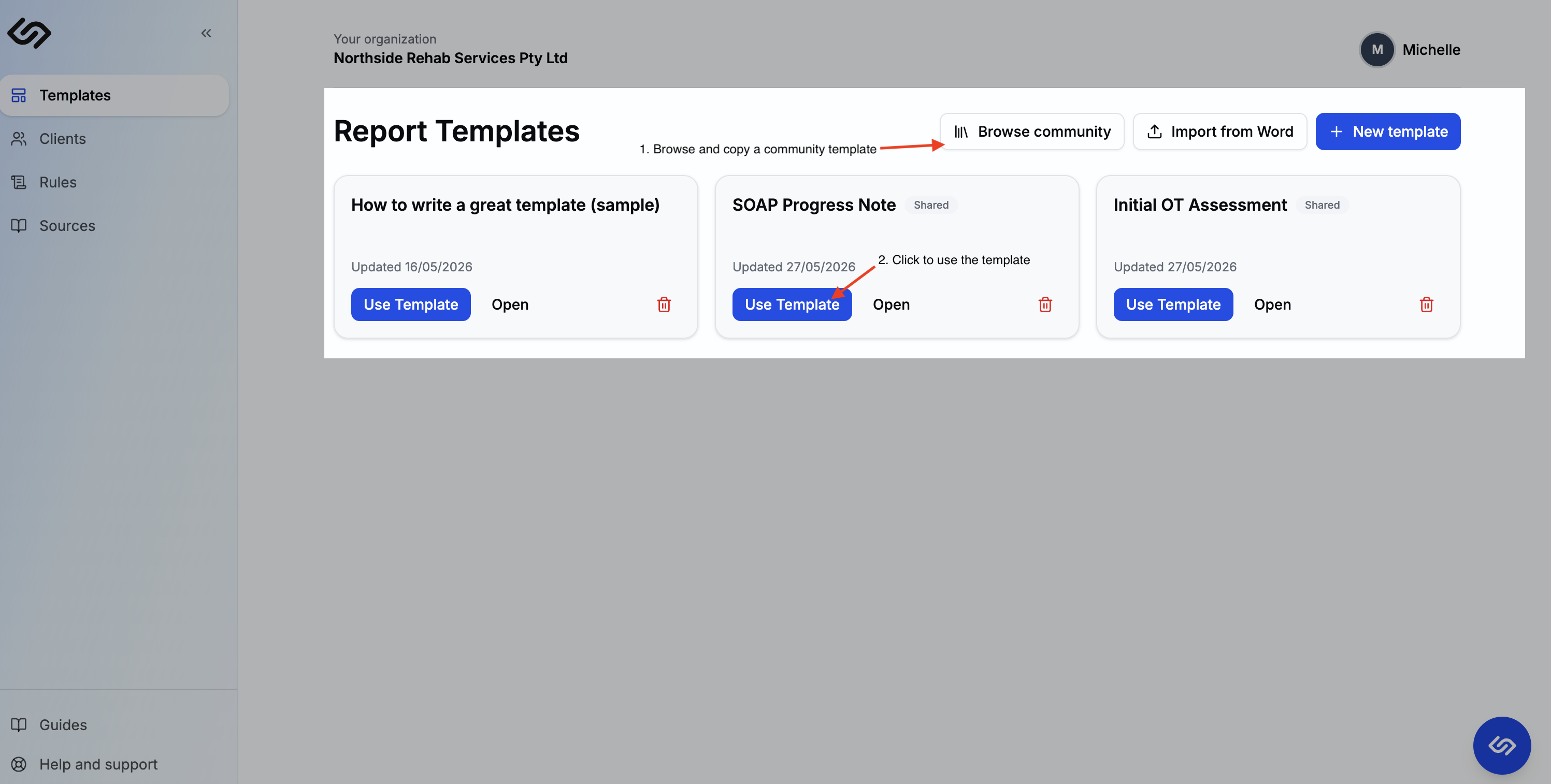
Pick a community template
Head to Templates and open the Community tab. Browse the available report types — NDIS, WorkCover, aged care, and more — and click Use Template on one that matches your report type. You can customise it later, but it works out of the box.
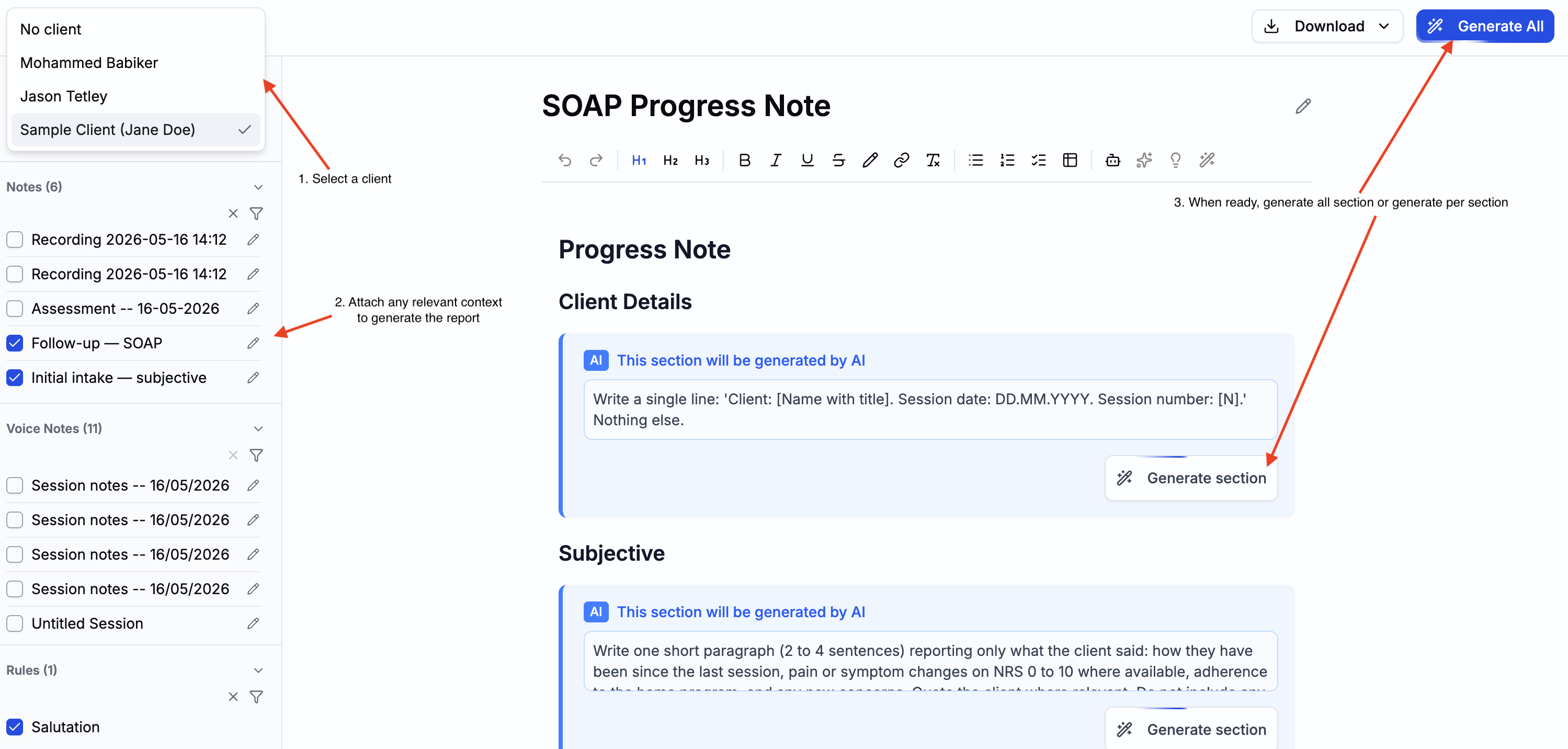
Generate the report
Select your client from the sidebar, optionally attach session notes or reference documents, then click Generate All. The AI fills every block in real time.
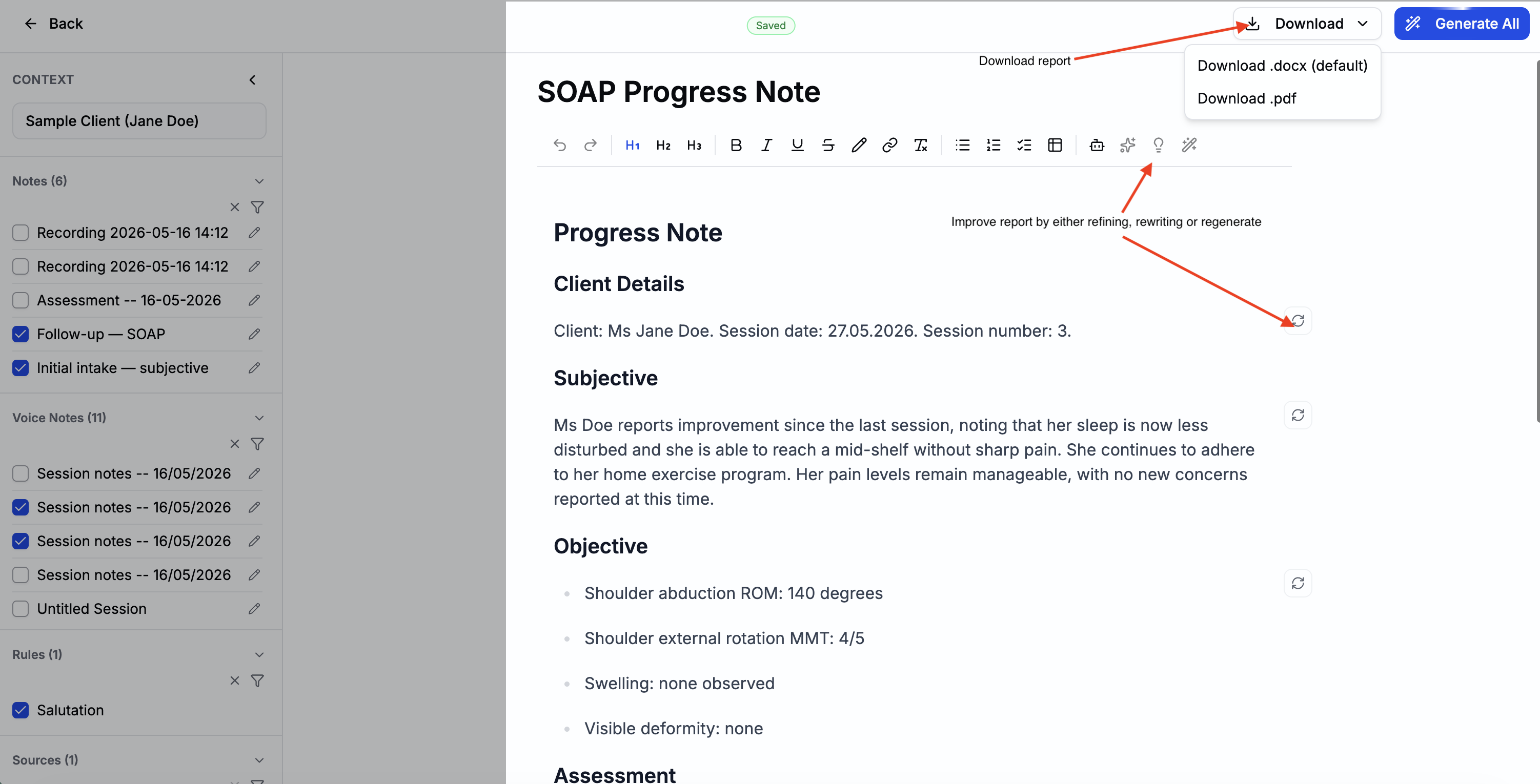
Review, edit, and export
Read through the draft — edit any block directly in the editor. When you're happy, click Download to get a formatted .docx file ready for submission.