Context
Voice Notes
Record session notes hands-free with live transcription. The transcript becomes context the AI draws from when generating your report.
Instead of typing up session notes after the fact, record them by voice and let Scrippio transcribe them automatically. Speak naturally — the transcript doesn't need to be perfect, the AI uses it as context alongside your other notes.
What to record
Anything the AI might need to draw from when writing a section. Common examples:
- Post-session debrief — record your observations immediately after a session while details are fresh.
- Functional observations — describe what you observed during an assessment, including client performance and limitations.
- Clinical reasoning — talk through your interpretation and what it means for the report.
- Goal progress updates — which goals were addressed, how the client is tracking, any changes to note.
- Client sessions — you can record during a session itself. Always obtain explicit informed consent from the client before recording.
What you can do
- Record hands-free with live transcription as you speak
- Upload existing audio files (.mp3, .mp4, .wav, .m4a up to 50 MB)
- Record sessions up to 3 hours long
- Attach transcripts as context during report generation
Recording a voice note
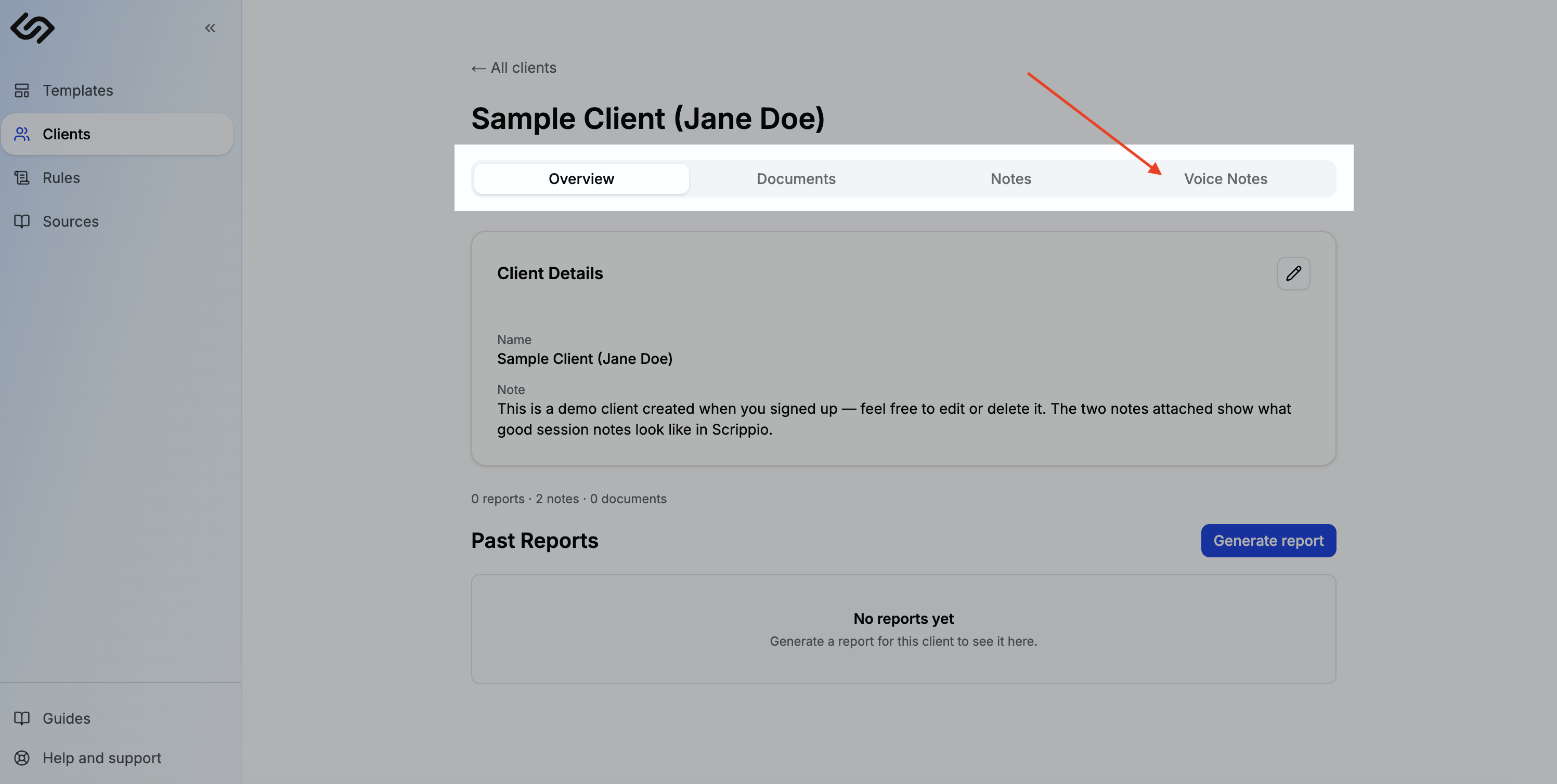
Open a client's Voice Notes tab
Navigate to the client's profile and select the Voice Notes tab.
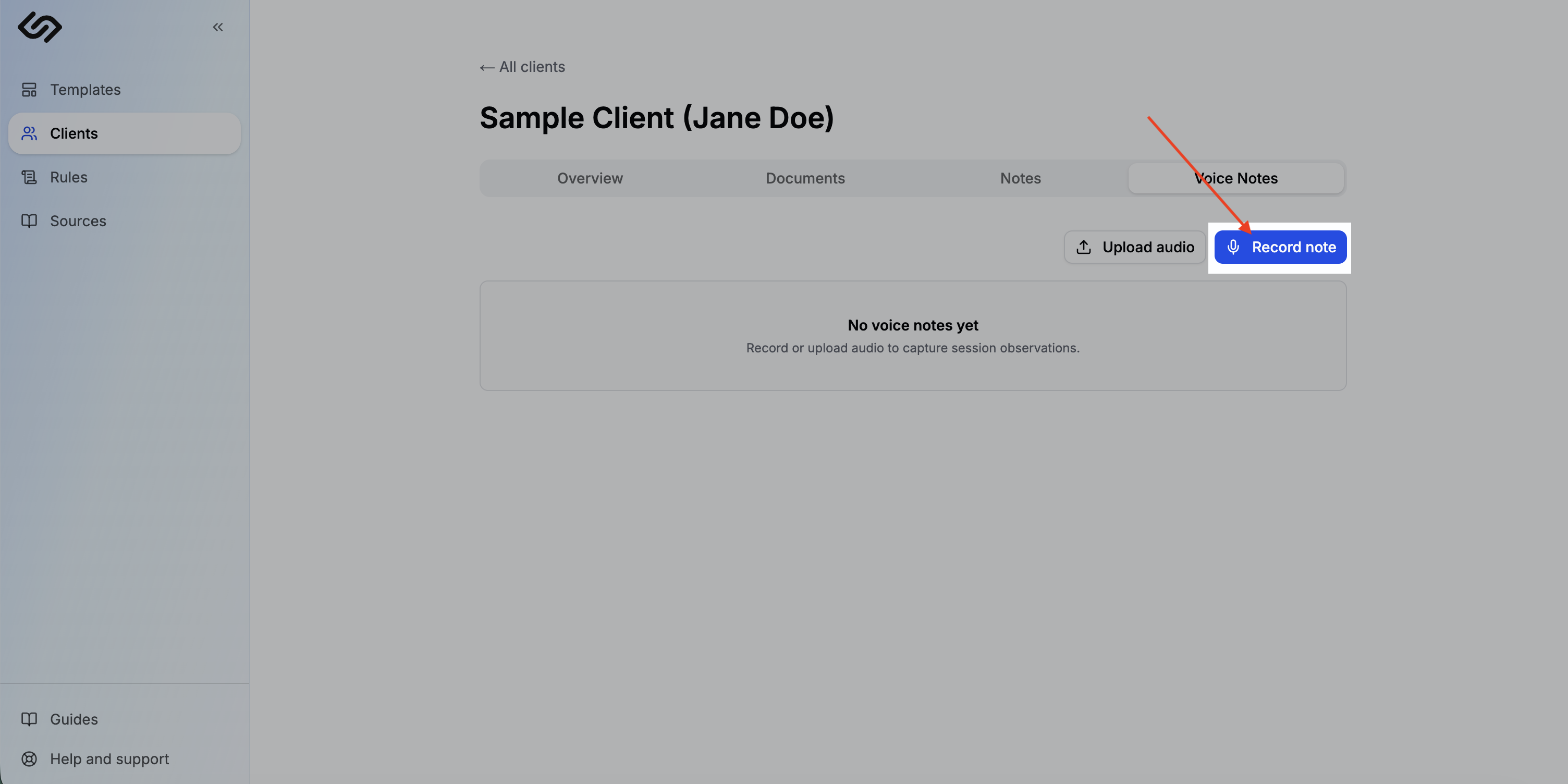
Click Record note
The recorder prefers external or headset microphones when available.
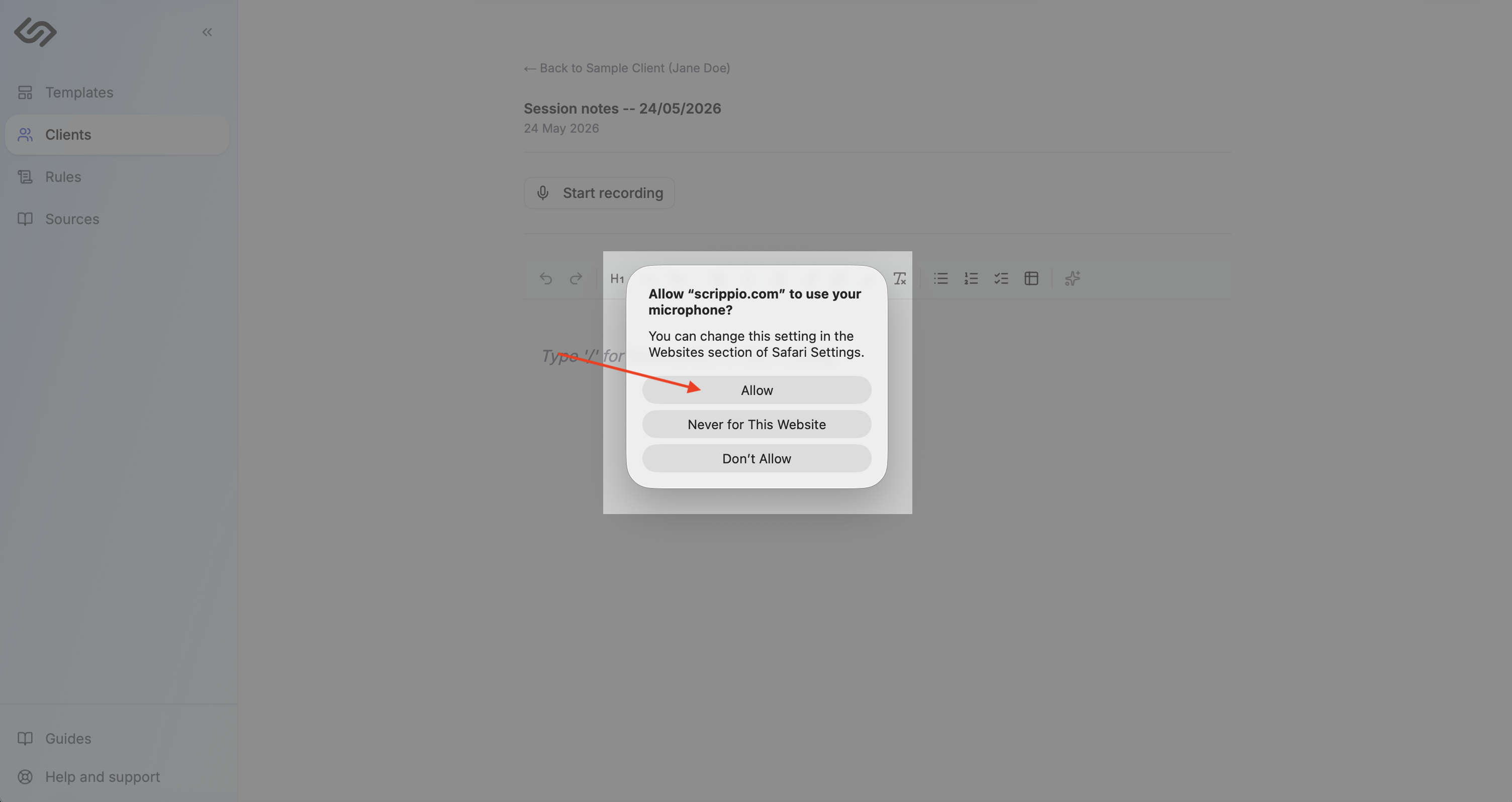
Allow microphone access
When prompted by your browser, click Allow to grant microphone permission. You only need to do this once. If you accidentally denied it, go to your browser settings → Site permissions → Microphone and allow app.scrippio.com.
Speak naturally
A live transcript appears in real time as you speak. A red pulsing indicator shows elapsed time. Recording can run up to 3 hours.
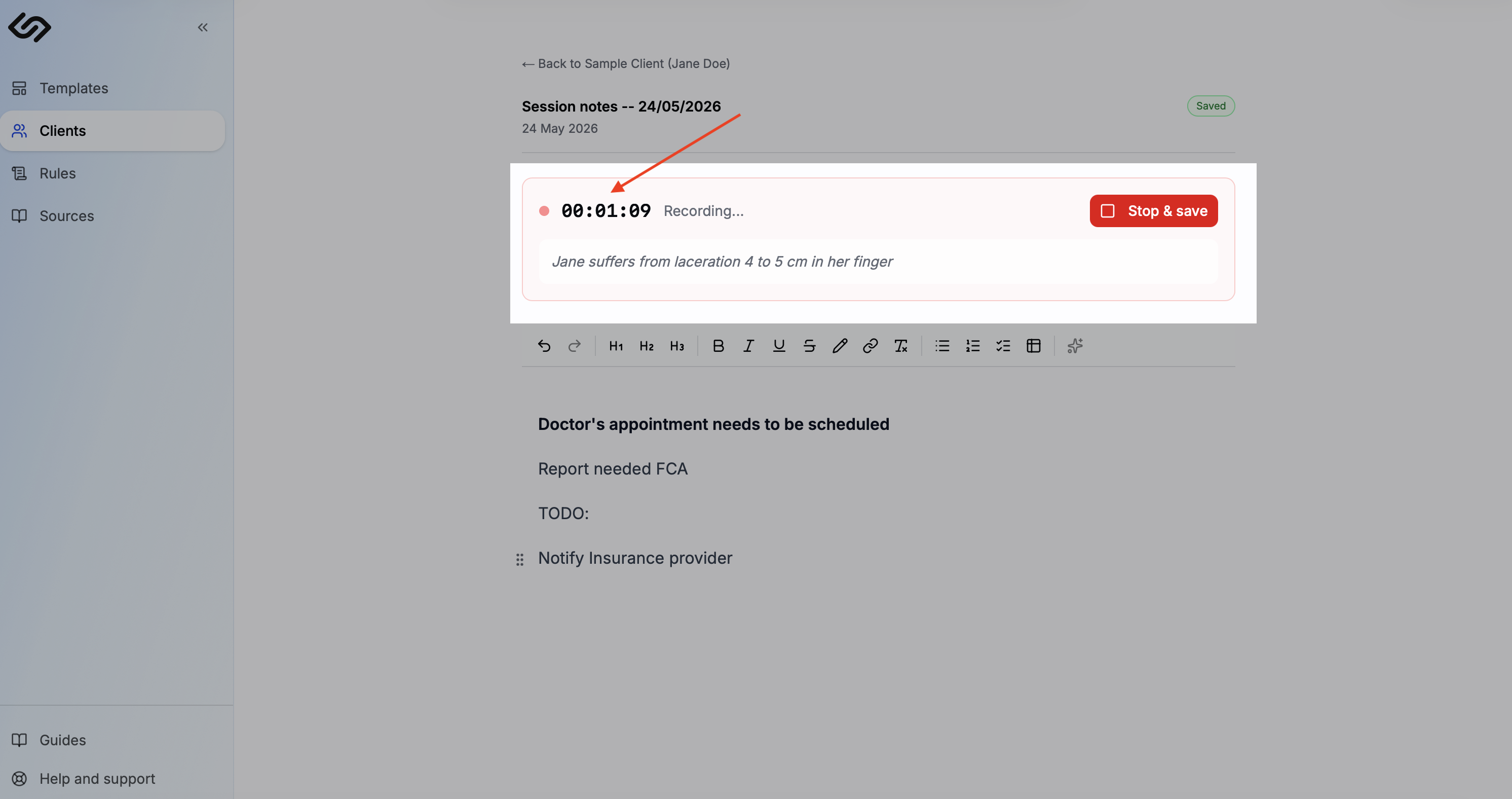
Stop and save
Click Stop & save. The audio is uploaded and the transcript is saved automatically.
Uploading existing audio
Already have a recording? Click Upload audio on the Voice Notes tab to upload an existing file (.mp3, .mp4, .wav, .m4a up to 50 MB). Add your session notes in the text field — these become the transcript the AI draws from during generation.
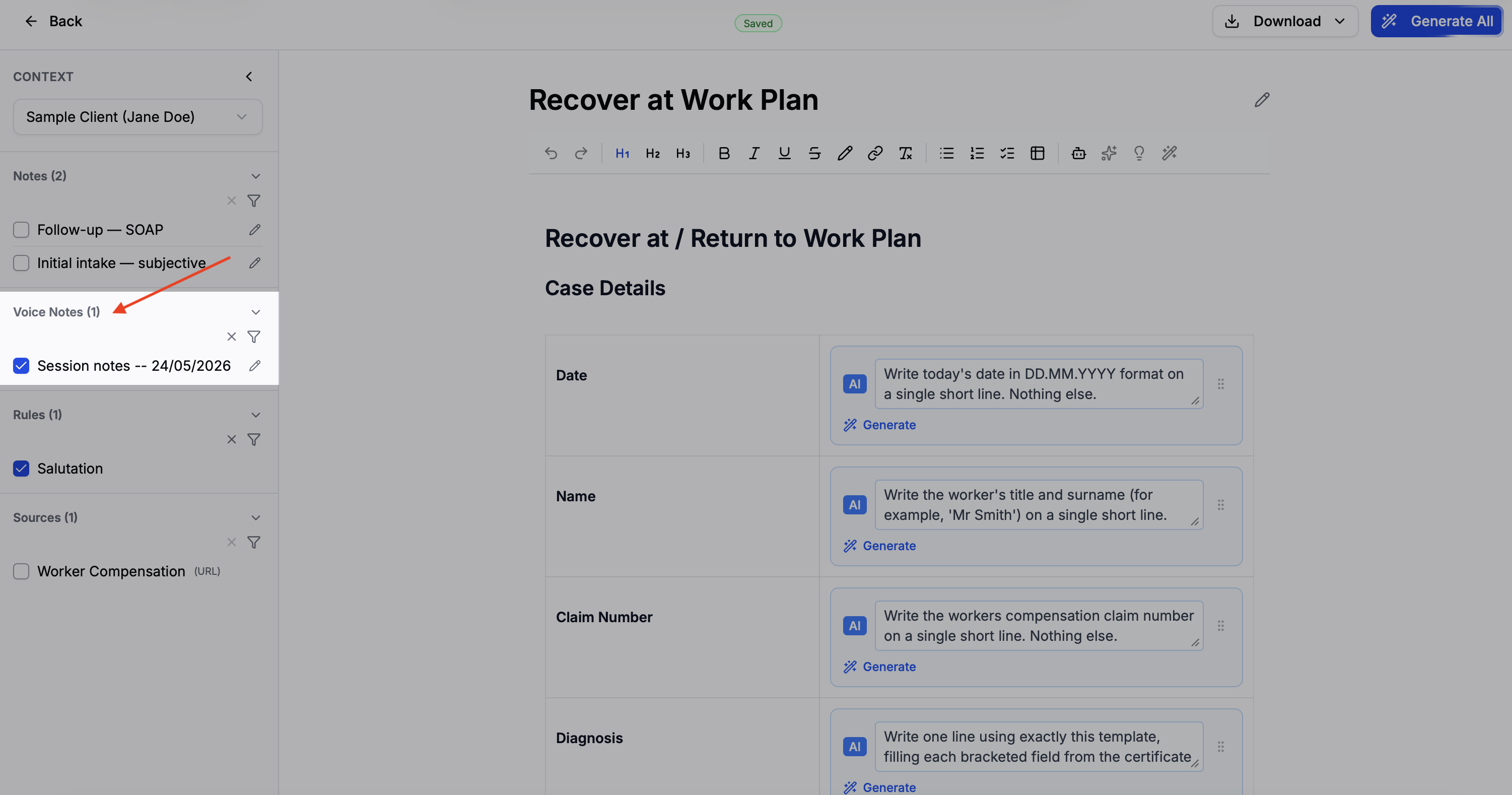
Using voice notes in reports
On the generate page, voice note transcripts appear in the Attachments section of the context panel. Check the box next to any voice note to include its transcript as context for the AI.