Templates
Creating a Template
Build a reusable report skeleton — static content for the fixed parts, AI blocks for the sections you want generated.
You write the template once, then use it for every client. Static sections stay identical across reports; AI blocks are filled with client-specific, clinically-reasoned content each time you generate.
Steps
Open a blank template
Go to Templates and click New template. Give it a name (e.g. "SOAP") and open the editor.
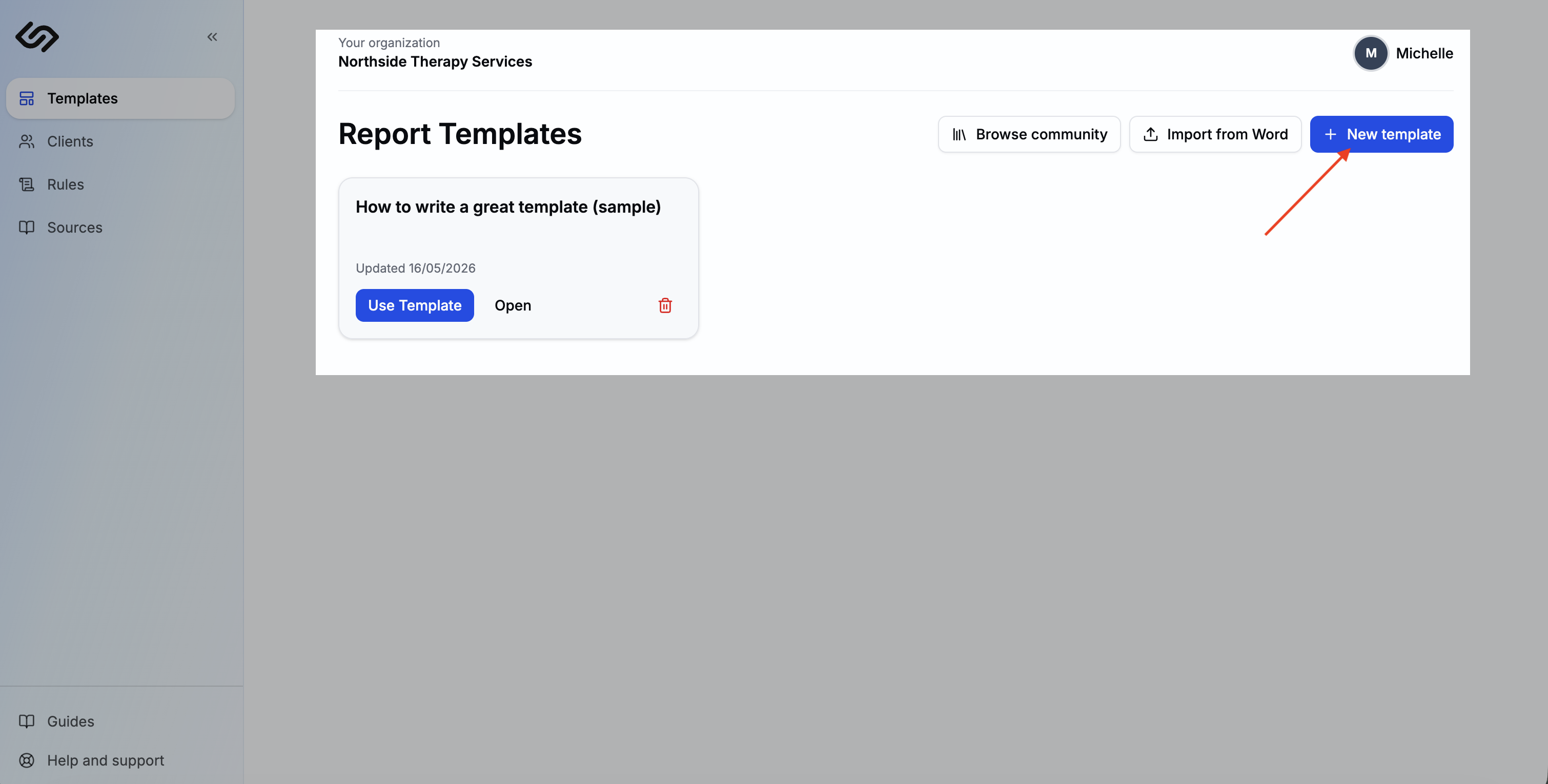
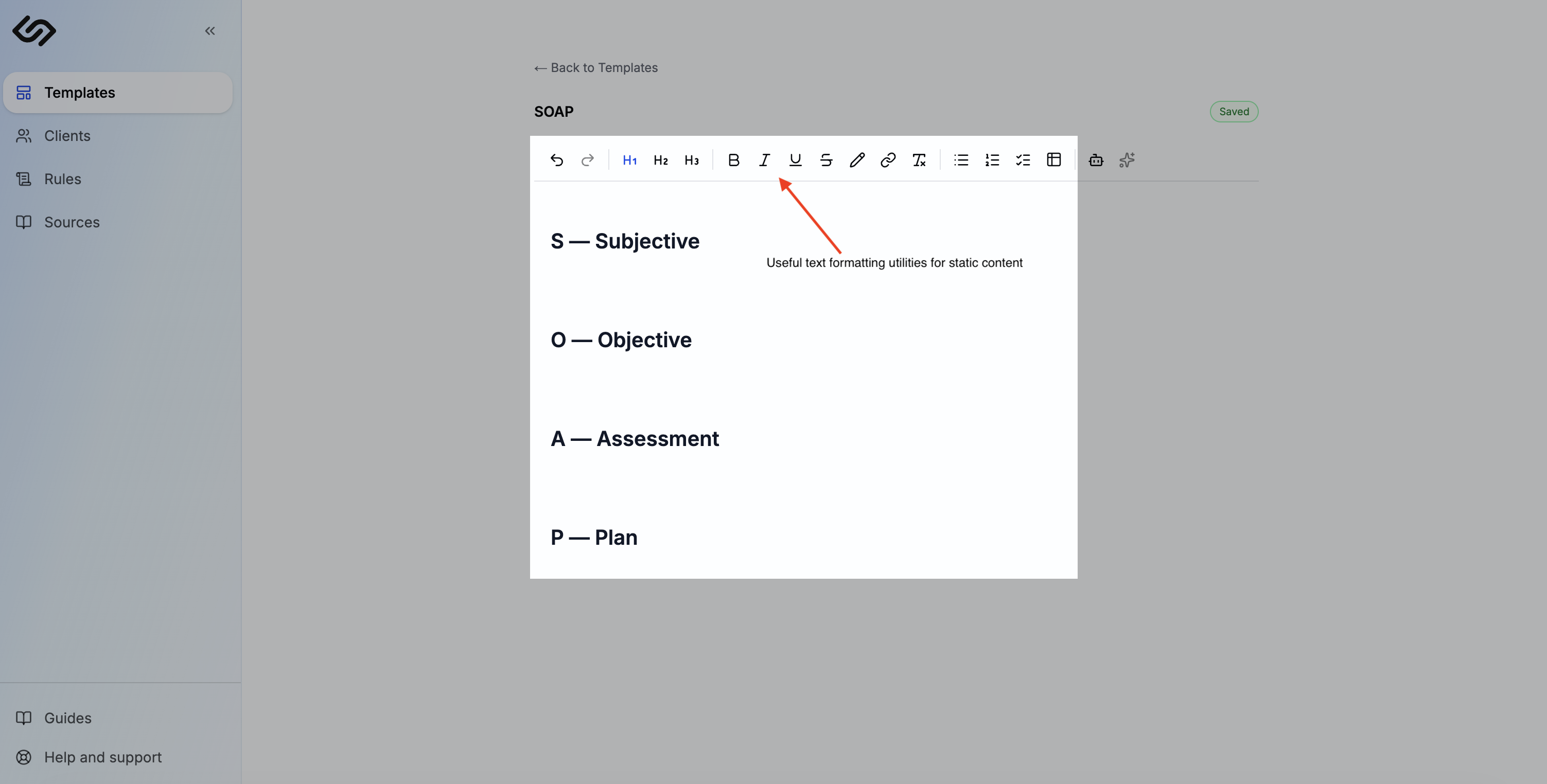
Add your static content
Use the rich text toolbar to add headings, lists, and tables. Type your static content — clinic letterhead, client detail fields, standard disclaimers, and section headers that appear on every report.
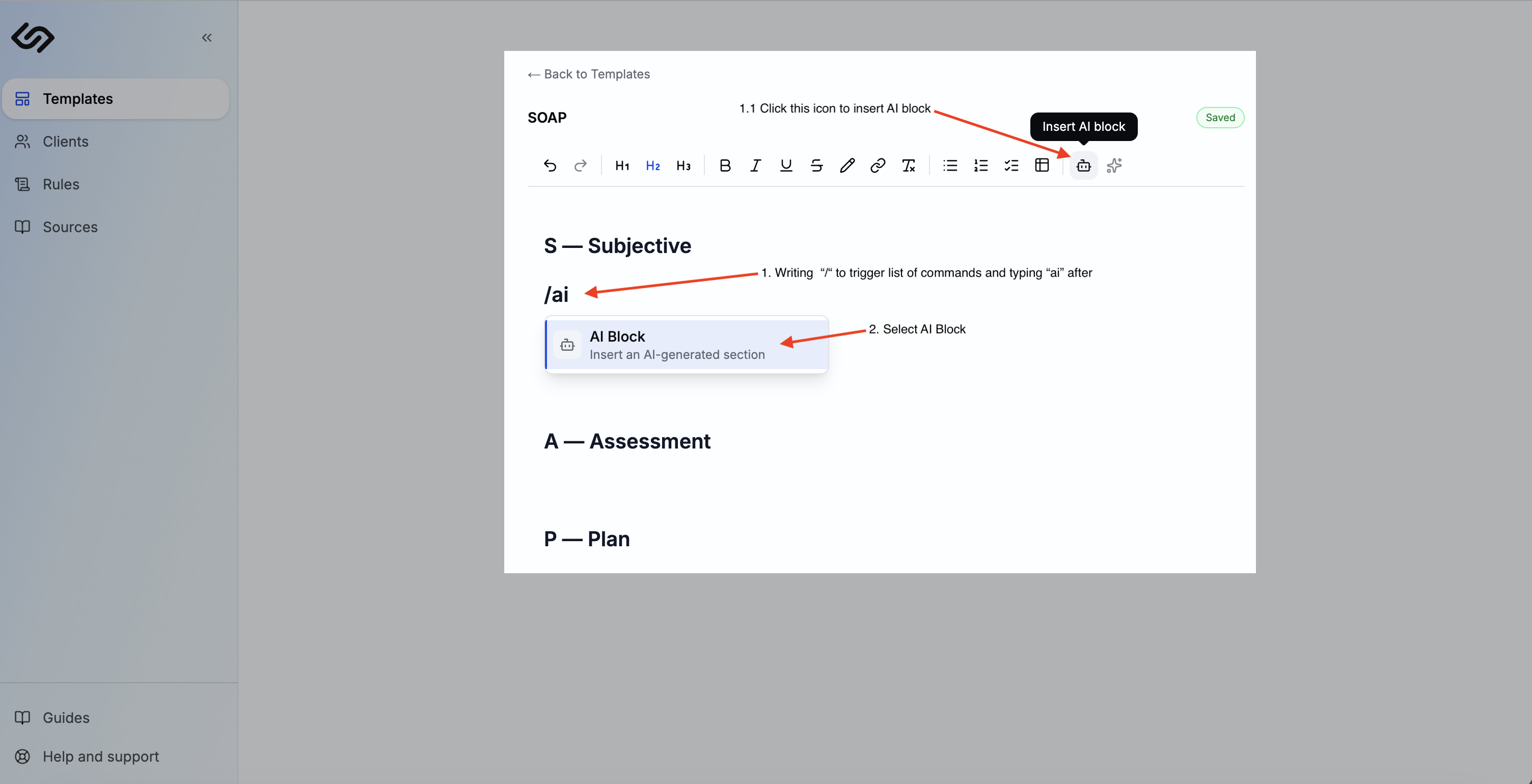
Insert AI blocks
Place your cursor where you want generated content, then insert an AI block in either of two ways: type / to open the slash menu and select AI Block, or click the robot icon in the editor toolbar. Give the block a title and a prompt. Repeat for each section you want the AI to write.
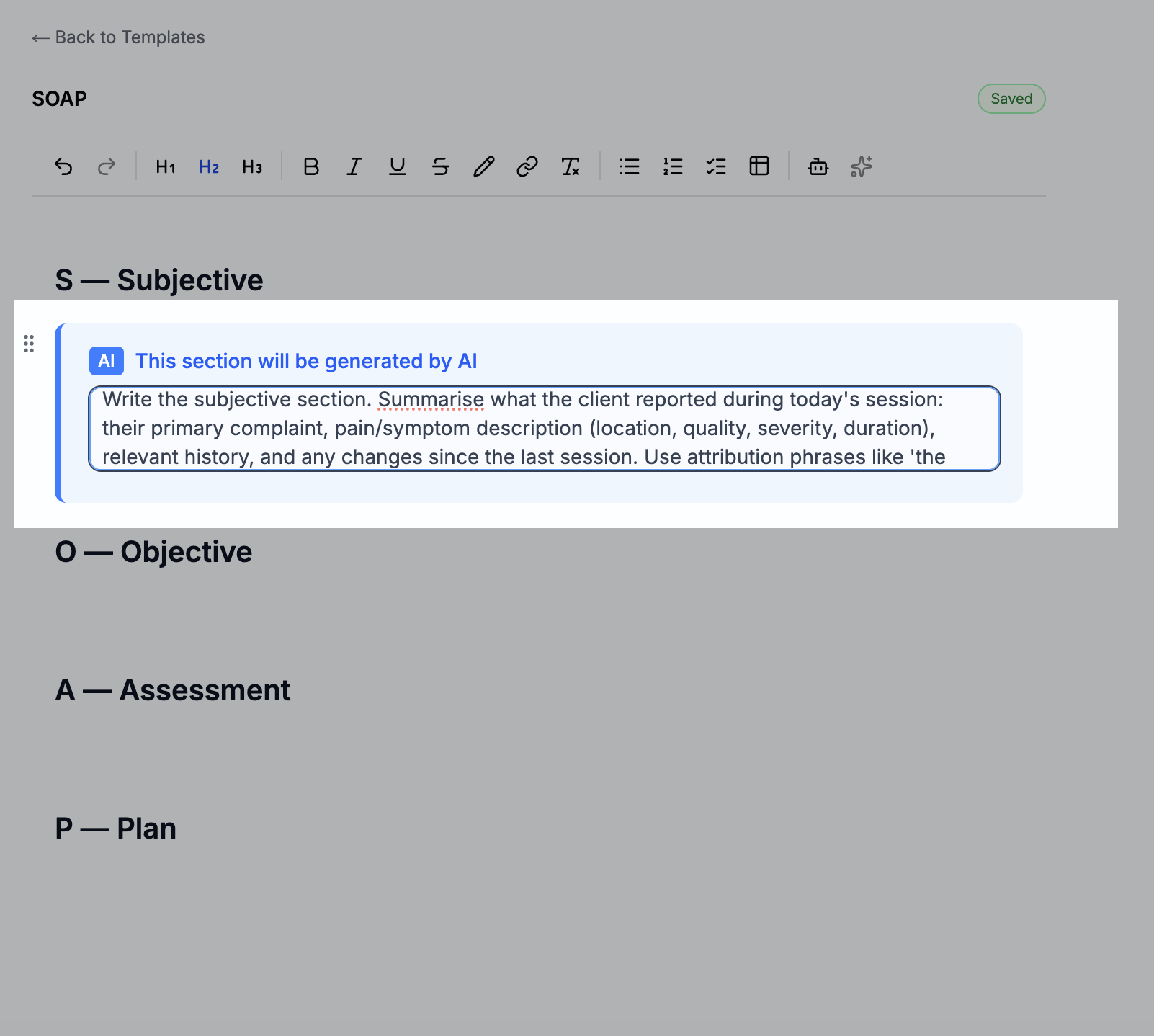
AI blocks
instructions telling the AI what to write (e.g. "Write a subjective section. Summarise what the client reported during today's session").
Tips for writing good prompts
- Be specific about structure. Tell the AI how to format the output — e.g. "Write 2–3 short paragraphs" or "Use a bulleted list of goals".
- Reference the notes. Include phrases like "based on the attached session notes" or "using the client's background information" so the AI knows where to draw from.
- Set the tone. Specify the clinical register — e.g. "Write in professional, third-person clinical language suitable for an NDIS progress report".
- Exclude what you don't want. Use phrases like "do not include recommendations — this section is assessment only" to keep sections focused.