Reports
Exporting
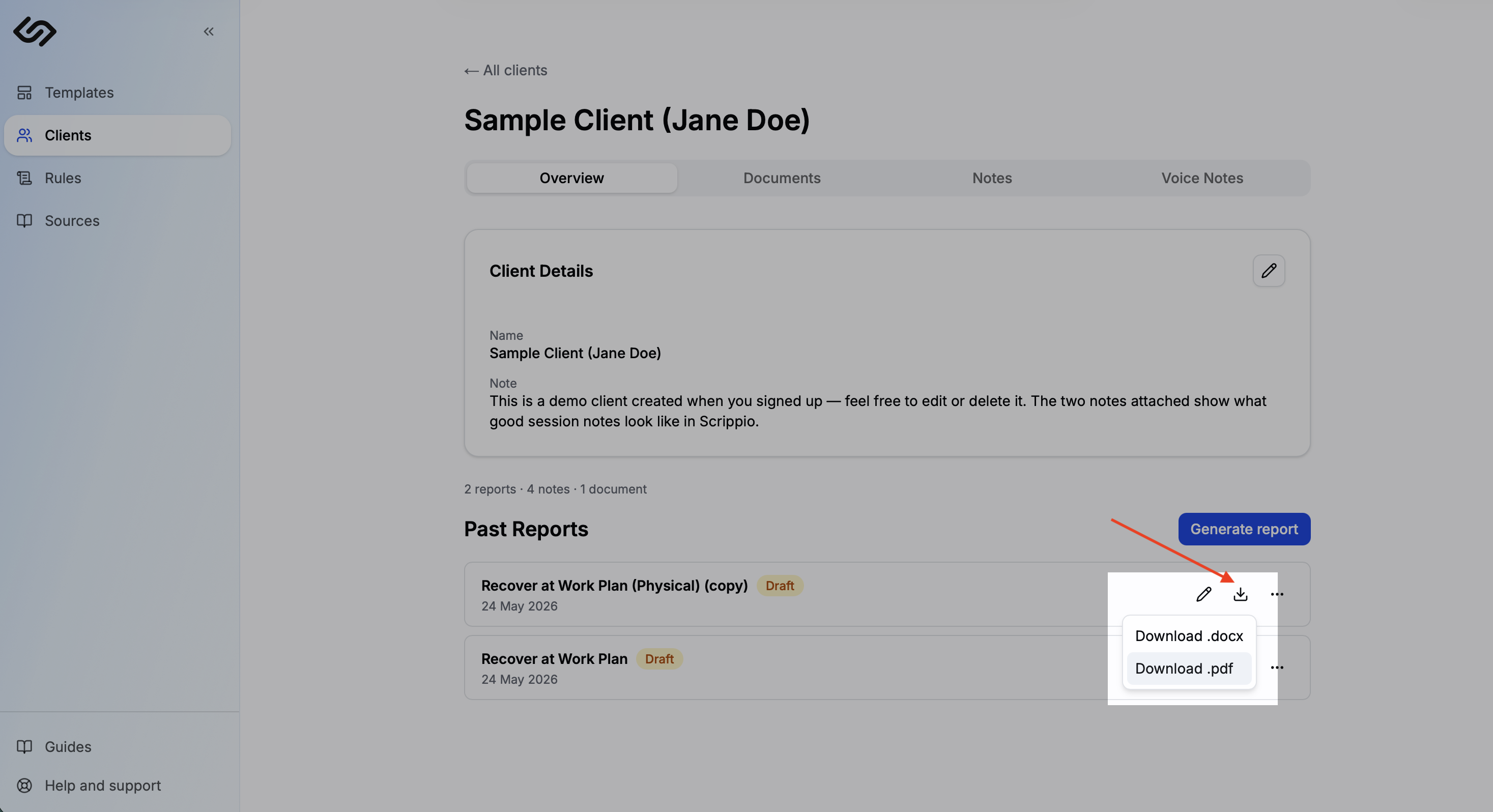
Download your finalised report as a formatted document — ready to submit, share, or file.
Once you've reviewed and edited the AI-generated content, export it as a .docx or .pdf file directly from the generate page. The file is built instantly in your browser — no upload, no waiting.
What's preserved in the export
The exported document matches what you see in the editor:
- Headings (H1, H2, H3) at the sizes configured in your Settings
- Bold, italic, and underlined text
- Bullet and numbered lists
- Tables with borders
Downloading a report
Review your report
Read through the AI-generated content and edit any sections — the download reflects exactly what you see.
Click Download
Click the Download button in the top bar. The .docx file is built instantly and saved to your downloads folder.
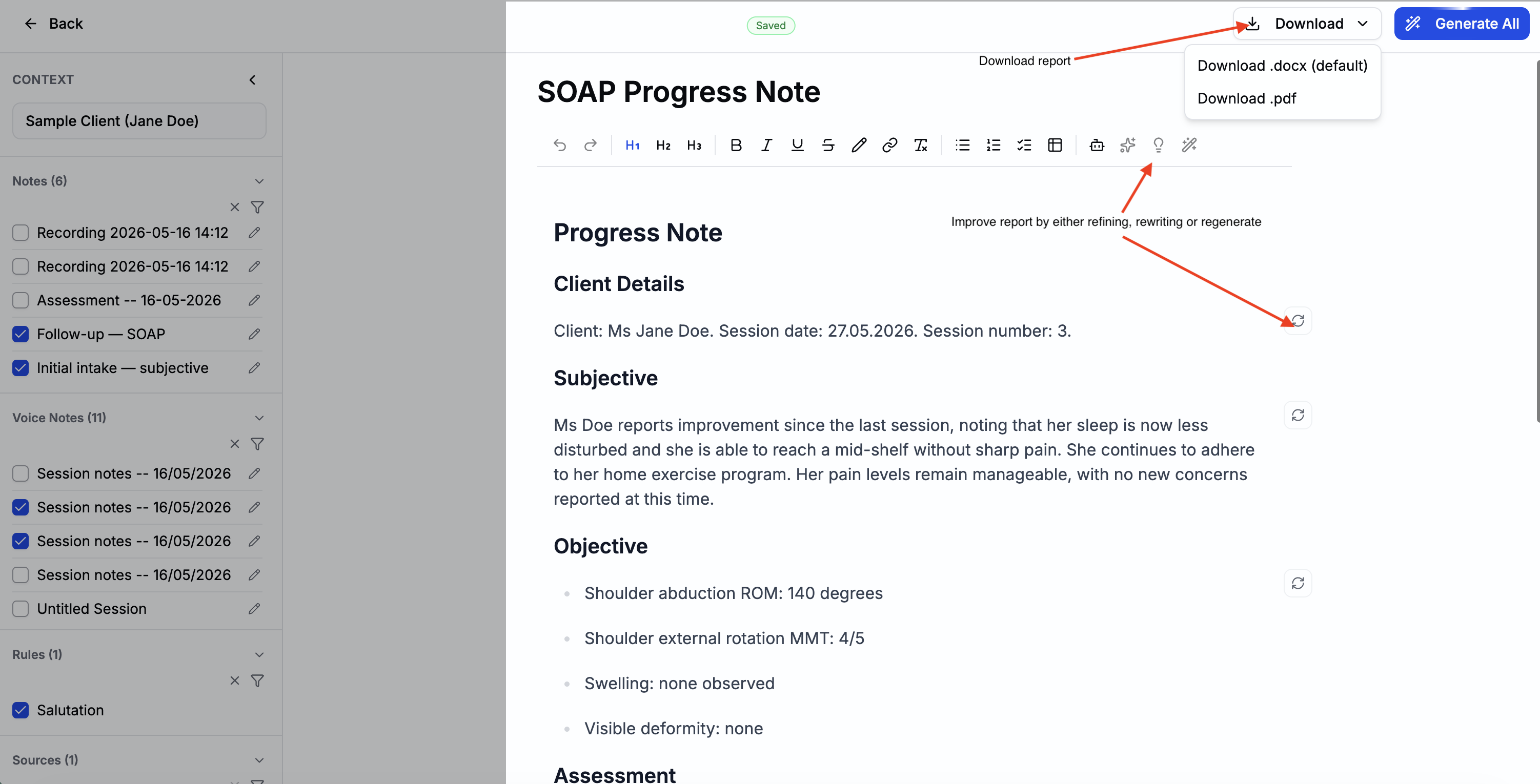
The default filename follows the format TemplateName_ClientName_YYYY-MM-DD.docx so exported files are easy to identify and sort. You can customise this template in Document Defaults.
Editing a report
Every report is saved to the client's profile. Re-open it in Scrippio rather than editing the Word file directly — that way your saved version stays in sync.
Open the client's Overview tab
Find the report in the client's report list.
Click the edit icon
Reopens the report in the generate page — edit any section and download again.